Key takeaways
- Aurelo is free during the open beta on iPhone, installed through TestFlight.
- Connect your accounts read-only for a suggested budget in about a minute, or build one by hand.
- Treat the suggested pockets as a first draft: rename, resize, add and remove.
- Aurelo never moves money; you save in your own bank, then tap Log it.
Aurelo is a budgeting app for iPhone that builds a plan around how you actually spend. This guide walks through the first session, from installing the app to your first logged save, and then the handful of habits that make the budget worth opening.
If you’re new to budgeting itself, How to Make a Budget That Actually Holds covers the method behind everything below.
1. Install Aurelo through TestFlight
Aurelo is currently in open beta, and it’s free to use while the beta runs. The beta is distributed through TestFlight, Apple’s app for testing new iPhone apps.
- Go to getaurelo.app and tap Try it early.
- Install TestFlight from the App Store if you don’t already have it.
- Open the invite and install Aurelo from TestFlight.
From then on, Aurelo sits on your home screen like any other app, and TestFlight lets you know when a new build is ready.
2. Sign in
Create your account with email, Google or Apple. Whichever you pick is how you sign in on this phone and any other.
3. Build your budget: connect a bank, or build by hand
Next comes the one real decision in setup: how the budget gets built.
Connect your spending accounts. Link your checking account and credit cards through Plaid. The connection is read-only: Aurelo can read transactions and balances, it can’t move money, and it never sees or stores your bank login. Aurelo reads your last six months of transactions, sorts them, and suggests a set of pockets with amounts that match what you really spend. That typically takes about a minute.
Build by hand. Prefer not to connect? Pick the pockets you want, enter a starting amount, and log spending yourself as it happens. You get a real, working budget either way.
If you’re weighing the connection, Is It Safe to Connect Your Bank to a Budgeting App? explains what read-only access means in practice.
In Aurelo: On the Free plan, your first budget can be built from your bank. After that, on Free you keep it current by logging spending yourself. On Gold, new transactions keep arriving from your bank and file themselves.
4. Review the suggested pockets
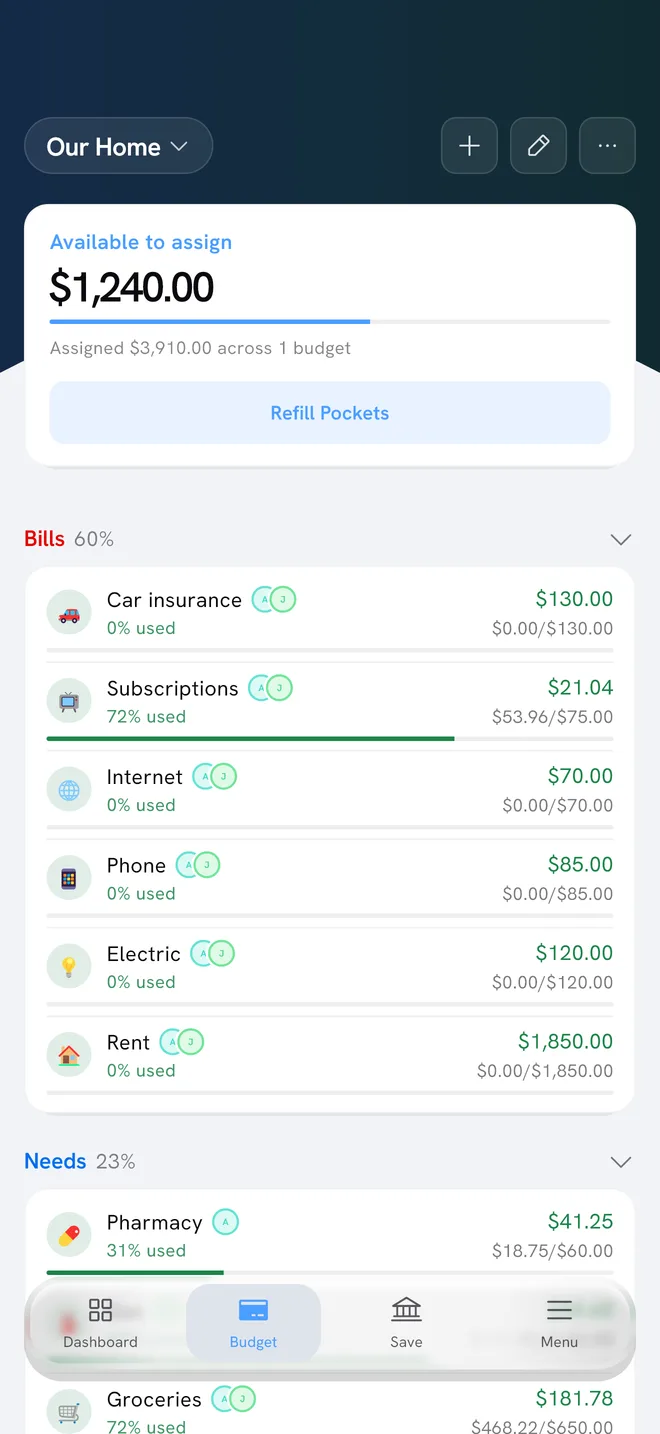
A pocket is a named amount of money for one purpose: rent, groceries, gas, eating out. Aurelo groups them as Bills, Needs and Wants, and may also suggest an Annual Pocket for a yearly bill or a Subscriptions pocket for recurring charges.
Treat the suggestion as a first draft, not a verdict. Go through it once:
- Rename anything that doesn’t sound like you.
- Adjust amounts that look off. Six months of history is a good guide, but you know about the trip next month.
- Add what it missed, such as a bill you pay in cash or a new expense.
- Remove pockets you don’t want to track separately.
If Aurelo spots something that looks like a loan, it asks whether you want to track it as a debt pocket. It never creates one without asking. Pockets in Aurelo goes deeper on every pocket type.
5. Your first look at the Dashboard
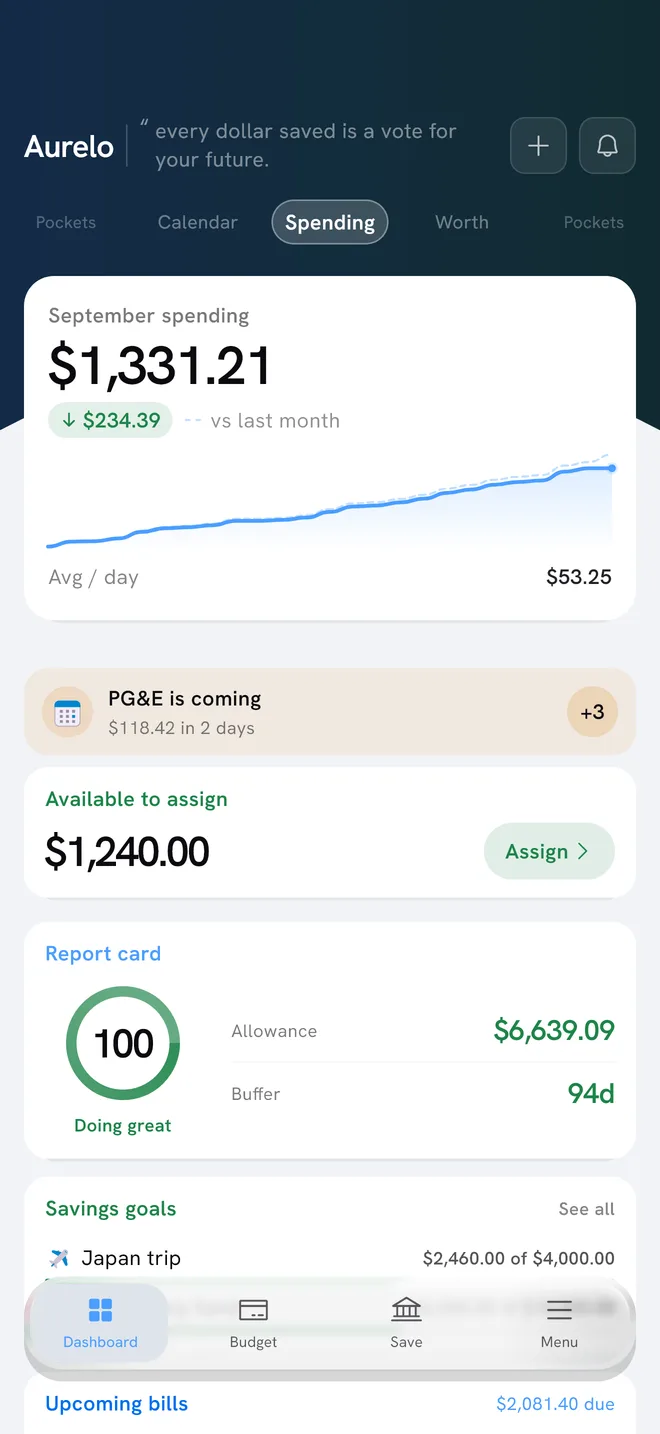
The app has four tabs: Dashboard, Budget, Save and Menu. The Dashboard is where to start each day. Three things are worth learning first:
- Today’s Allowance is what you can spend today: your checking balance, minus the bills due before your next payday, minus what your pockets still need. If it goes negative, it turns red and offers a Reshuffle.
- Buffer Days is how many days your cash (checking plus savings) would last at your average daily spending over the last 30 days. Under 14 days is red, 14 to 29 is yellow, 30 or more is green.
- Upcoming bills shows what’s due and when. Aurelo detects recurring bills from your transactions and only shows a bill it’s confident about; it won’t guess.
The Report card shows your Aurelo Score alongside Today’s Allowance and Buffer Days. What Today’s Allowance and Buffer Days Tell You explains both numbers with worked examples.
6. Fill your pockets
Open the Budget tab. The Available to assign card shows money you have that isn’t in a pocket yet. Tap Refill Pockets to top your pockets up.
Smart Fill does the arithmetic for you: it proposes amounts through your next payday, covering the bills due before then first. You approve the proposal or change any amount before it’s applied.
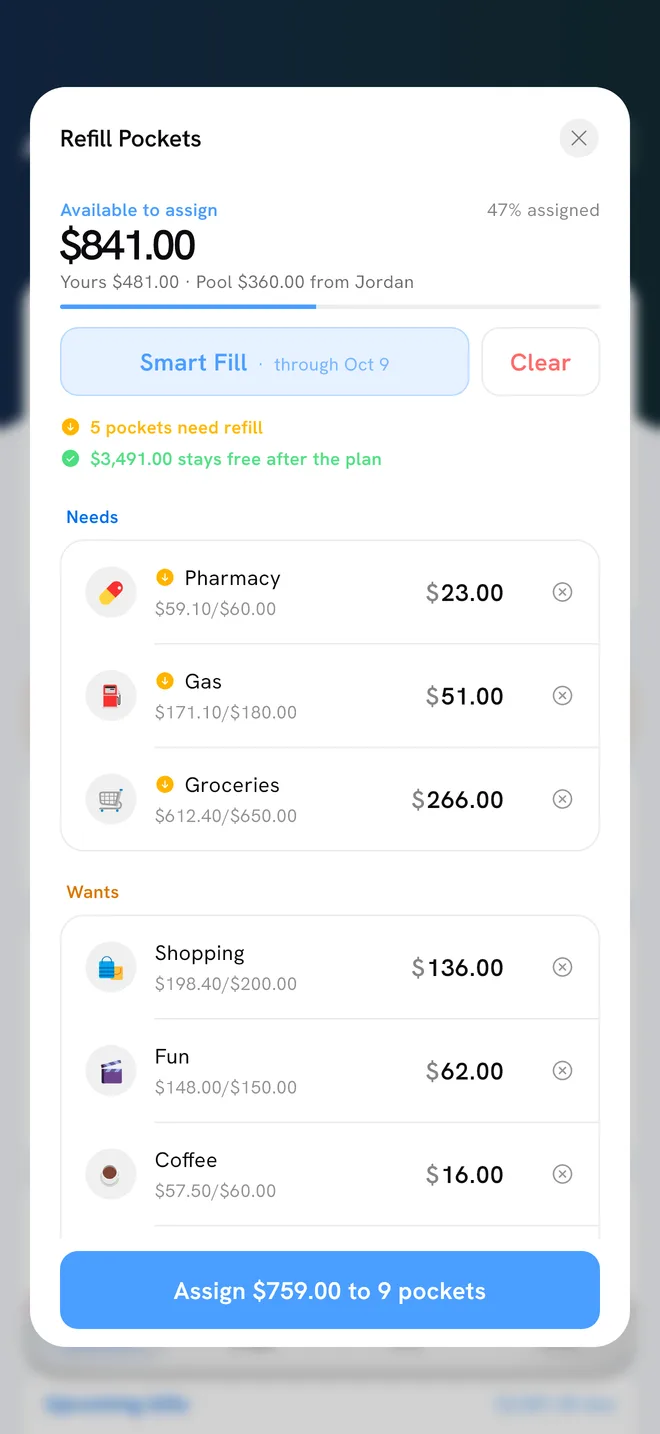
For example: say you have $1,800 available to assign, payday is 10 days away, and your electric bill ($120) and phone bill ($65) are due before then. Smart Fill covers those two bills first, then proposes amounts for your other pockets from what remains. If you know you’re eating out less this week, you lower that pocket before approving.
7. The Save tab and Log it
The Save tab tells you “You can save $X this month”: what’s left after your pockets and the bills still ahead.
Aurelo doesn’t move money. When you decide to save, you move the amount yourself in your own bank, then come back and tap Log it. Aurelo keeps the running total and a monthly streak, and any savings goals you set up (a “Japan trip” or an “Emergency fund”, for example) show progress toward their targets.
In Aurelo: Logging a save takes one tap, and the streak counts months, not days. One logged save a month is enough to keep it going.
Your first week: four habits
A budget earns its keep in the first week, when real spending meets the plan. Keep it light:
- Glance at Today’s Allowance before a discretionary purchase. It takes a second and answers “can I afford this today” with your bills already accounted for.
- Fix a sort when you see one. If a transaction lands in the wrong pocket, move it. When you move the same merchant consistently, Aurelo asks “Remember this?” and files it that way next time. It never changes your rules silently.
- Reshuffle instead of abandoning the plan. A pocket running over is normal. Move money from another pocket to cover it and carry on.
- Check upcoming bills or the Money Calendar once. The calendar shows your month with income, bills and the projected balance for each day, so the week before payday holds fewer surprises.
At the end of the month, the Monthly recap shows what came in, what went out and how your pockets did. That’s the moment to adjust amounts for next month.
Where to go next
When the budget feels settled, you can share it with a partner or housemate from Menu → Sharing, and see what each plan includes from Menu → Your plan. If something doesn’t look right while you’re getting set up, you can tell us from Menu → Help → Report a problem.
Common questions
How do I get the Aurelo app?
Aurelo is in open beta on iPhone through Apple's TestFlight. Tap Try it early on getaurelo.app, install TestFlight from the App Store, then install Aurelo from the TestFlight invite. It's free to use during the beta.
Do I have to connect my bank to use Aurelo?
No. You can pick your pockets yourself, enter a starting amount and log spending by hand. Connecting through Plaid is optional and read-only; it just lets Aurelo suggest a budget from your real spending.
How long does it take to set up a budget in Aurelo?
If you connect your accounts, Aurelo reads your last six months of transactions and typically suggests a full budget in about a minute. Reviewing and adjusting it usually takes a few more minutes.
What should I do in Aurelo after setting it up?
Check Today's Allowance before you spend, keep an eye on upcoming bills, and once a month use the Save tab to see what you can put aside. Move that money in your own bank, then tap Log it.
Written by the Aurelo team. We build Aurelo, a budgeting app that reads your accounts read-only and never moves your money. Every claim about the app is checked against the app itself. This is general education, not financial, tax or legal advice.