Key takeaways
- Aurelo reads six months of transactions through Plaid, read-only, and suggests pockets with amounts.
- Recurring bills only appear when Aurelo is confident about them; it won't guess.
- The suggestion is a first draft: rename, adjust, add or remove anything.
- On Free you get one budget built from your bank; Gold keeps it current automatically.
Building a budget from scratch usually starts with a blank page and a guess. How much do you really spend on groceries? What bills come out every month? Aurelo starts from your actual spending instead. You connect your accounts, and it builds a first draft of your budget from what the last six months really looked like.
This guide walks through what happens at each step, what Aurelo does and doesn’t do, and what to check before you call the budget yours. If you haven’t installed the app yet, Getting Started With Aurelo covers setup from the beginning.
Step 1: Connect your spending accounts
During setup you choose how your budget gets built. The first option is to connect your checking account and credit cards through Plaid.
The connection is read-only. Aurelo can read transactions and balances. It cannot move money, and it never sees or stores your bank login. Data is encrypted in transit and at rest, you can disconnect a bank at any time, and deleting your account deletes your data. Is It Safe to Connect Your Bank to a Budgeting App? explains read-only access in more detail.
Connect the accounts you actually spend from: the checking account your paycheck lands in and the cards you use day to day. Those are what the budget is built from.
Step 2: Aurelo reads six months of transactions
Once you’re connected, Aurelo reads your last six months of transactions. Six months is long enough to see a real pattern, including bills that come every month and spending that goes up and down, without leaning on habits from years ago.
It then sorts those transactions by what they were for: rent, groceries, gas, eating out, a phone bill. Refunds are subtracted from spending, so a return doesn’t make a month look more expensive than it was.
The whole process typically takes about a minute.
Step 3: Pockets with suggested amounts
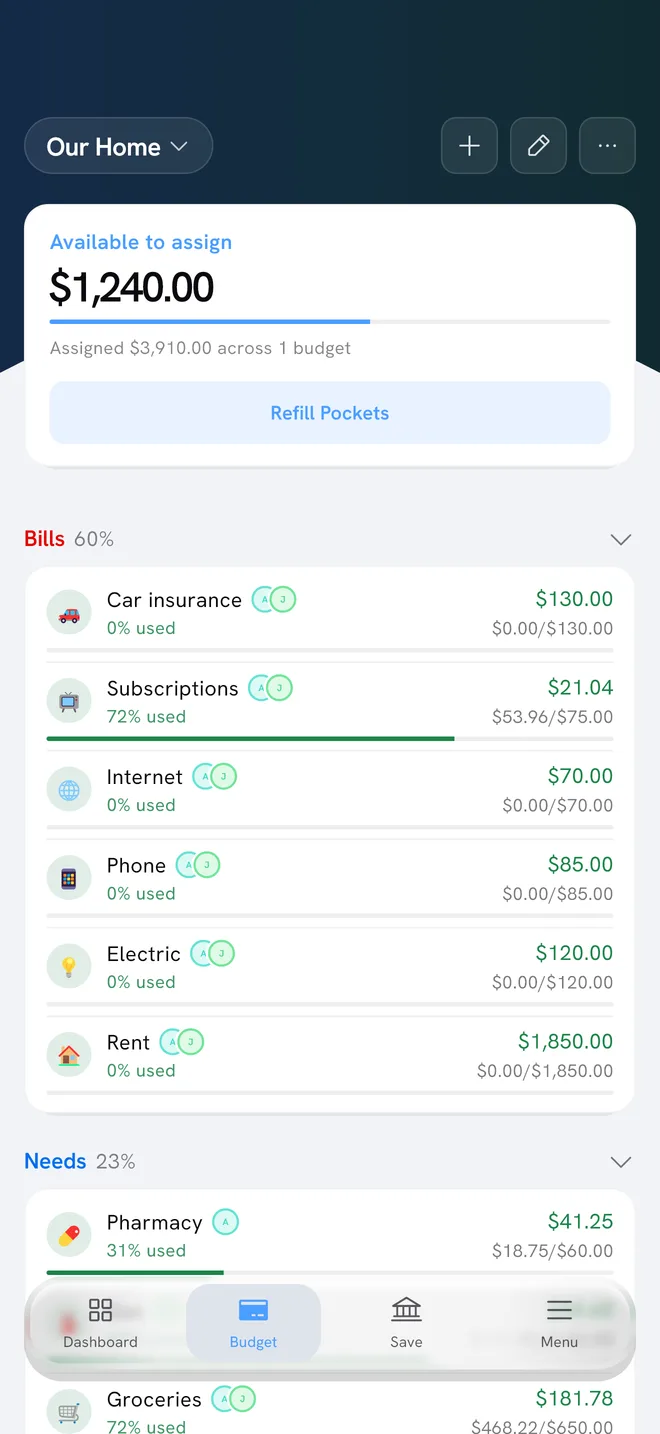
From that sorted history, Aurelo suggests a set of pockets, each with an amount that matches how you actually spend. A pocket is a named amount of money for one purpose. They’re grouped into three sections:
- Bills: rent, utilities, phone, insurance and other regular charges.
- Needs: groceries, gas, and other essentials that vary.
- Wants: eating out, entertainment, shopping.
Depending on your history, the suggestion may also include special pocket types:
- Annual Pockets for yearly bills, such as insurance, a membership or a card’s annual fee, so a bit is set aside each month.
- A Subscriptions pocket that groups recurring subscription charges in one place.
- Debt pockets. If Aurelo spots something that looks like a loan, it asks whether you want to track it. It never creates a debt pocket without asking.
Pockets in Aurelo explains each type in depth.
Recurring bills: shown only when Aurelo is confident
Aurelo also looks for recurring bills in your history and shows what’s due and when. It’s deliberately careful here. It only shows a bill it’s confident about, and it won’t guess.
That means a bill that’s new, irregular or hard to read may not appear right away. That’s by design: a missing bill is easy to spot and add, while a wrong date or amount could quietly throw off your plan. If you know a bill is coming that Aurelo hasn’t listed, add it yourself.
Step 4: Review and make it yours
The suggestion is a starting point, not a verdict. Before you settle in, go through it once:
- Rename any pocket that doesn’t sound like you.
- Adjust amounts. Six months of history is a good guide, but you know about the trip next month or the gym you just quit.
- Add what it missed, such as a bill you pay in cash or a new expense.
- Remove pockets you’d rather not track separately.
You can edit everything, and you can keep editing after setup. The budget belongs to you, not to the history it was built from.
In Aurelo: Think of the first month as calibration. At the end of it, the Monthly recap shows what came in, what went out and how each pocket did, which makes it easy to see which amounts need nudging.
Step 5: Aurelo learns how you sort
No automatic sorting is perfect. A merchant can mean different things to different people: one person’s warehouse club trip is groceries, another’s is household supplies.
When you move a transaction to a different pocket, and you do it consistently for the same merchant, Aurelo asks “Remember this?” If you say yes, it files that merchant the same way next time. If you say no, nothing changes. Aurelo never changes your rules silently.
Sorting is included on every plan.
The manual path: no bank required
Connecting a bank is optional. If you’d rather not, choose to build by hand:
- Pick the pockets you want.
- Enter a starting amount.
- Log spending yourself as it happens.
You get a real, working budget made of the same kind of pockets. The difference is that you’re the one recording transactions. Some people prefer it, since logging each purchase makes spending feel more deliberate.
Free and Gold: keeping the budget current
Here’s how the plans differ once your budget is built.
- Free includes one budget built from your bank. After that, on Free you keep it current by logging spending yourself. Sorting, pockets, Card Cover, Today’s Allowance, Buffer Days and the Money Calendar are all included.
- Gold ($12 a month or $80 a year) keeps the budget current for you: new transactions arrive from your bank and file themselves into the right pockets.
During the open beta, the app is free to use. Aurelo Free vs Gold lists everything each plan includes.
After the build: where to go next
With your pockets in place, the next step is putting money in them. Open the Budget tab, where Available to assign shows money you have that isn’t in a pocket yet. Refill Pockets tops pockets up, and Smart Fill proposes amounts through your next payday, covering the bills due before then first. You approve or change each amount.
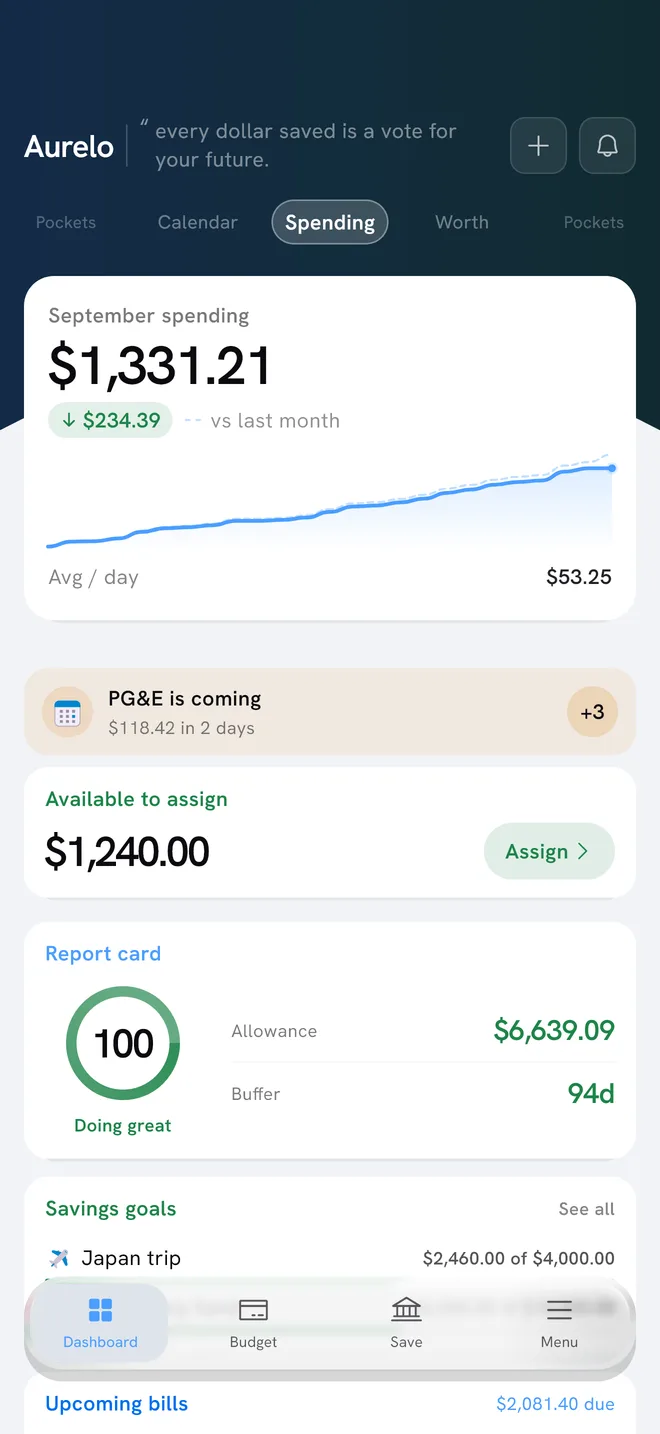
From there, the Dashboard’s Today’s Allowance and Buffer Days tell you where you stand day to day. If you pay with credit cards, Card Cover shows how card spending is handled so nothing is counted twice.
Common questions
How does Aurelo create a budget automatically?
You connect your checking account and credit cards through Plaid. Aurelo reads the last six months of transactions, sorts them by what they were for, and suggests a set of pockets with amounts based on how you actually spend. It typically takes about a minute.
Can Aurelo move money when I connect my bank?
No. The Plaid connection is read-only. Aurelo can read transactions and balances, but it cannot move money and never sees or stores your bank login.
What if Aurelo puts a transaction in the wrong pocket?
Move it to the right pocket. If you move the same merchant the same way consistently, Aurelo asks whether to remember it, and files that merchant your way from then on. It never changes your rules without asking.
Can I use Aurelo without connecting a bank?
Yes. Pick the pockets you want, enter a starting amount, and log your spending by hand. You get a complete, working budget either way.
Written by the Aurelo team. We build Aurelo, a budgeting app that reads your accounts read-only and never moves your money. Every claim about the app is checked against the app itself. This is general education, not financial, tax or legal advice.